Optimizing Long Tasks in JavaScript for Better Web Performance
Introduction
A website can load quickly and still feel unresponsive when users interact with it. One possible reason is JavaScript that occupies the browser's main thread for too long.
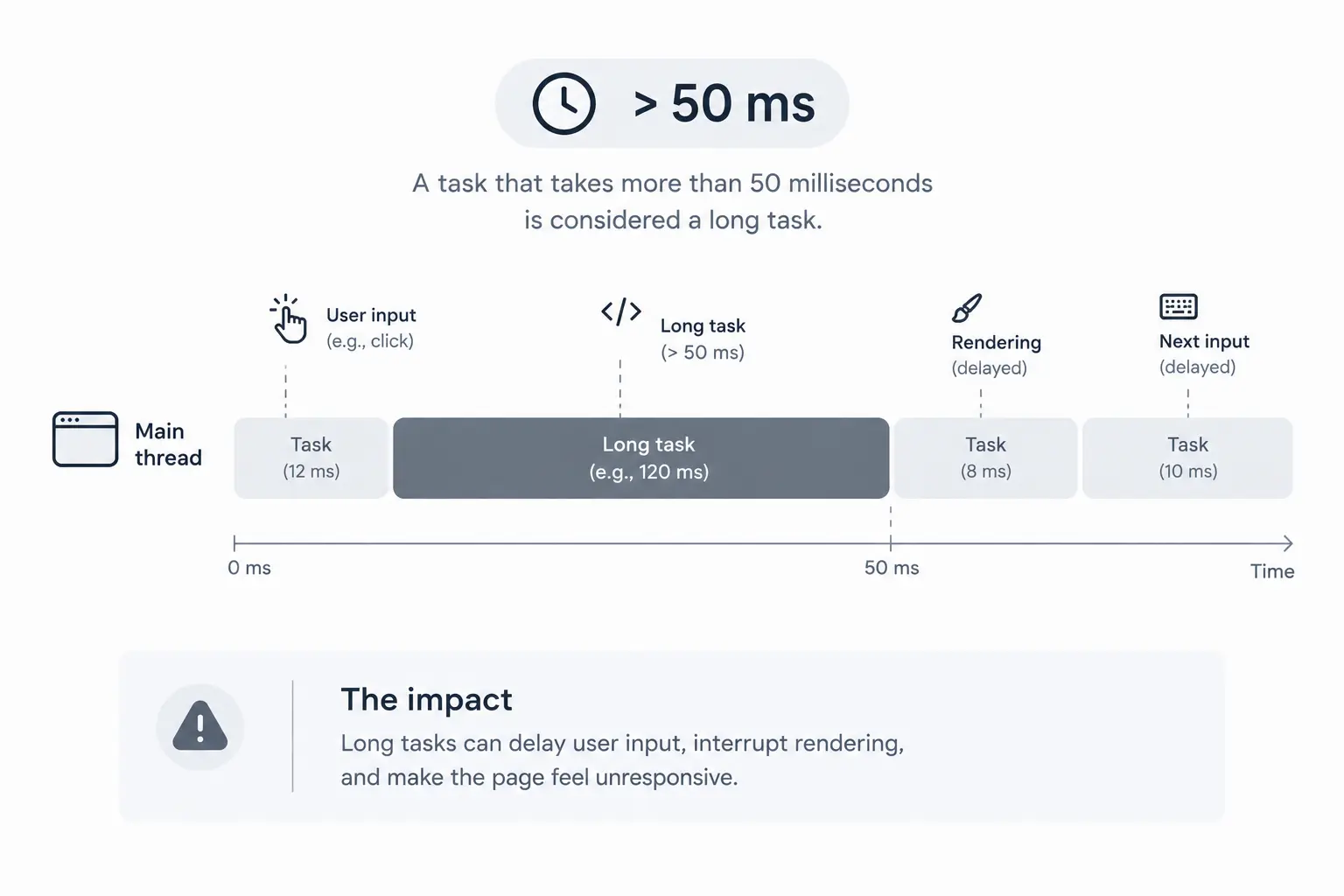
These long tasks can delay user input, interrupt rendering, and make an otherwise fast website feel sluggish.
Understanding how browser tasks work, how to identify long tasks, and how to optimize them can help us build more responsive web experiences.
In this article, we'll explore these concepts and discuss practical strategies for optimizing long tasks in JavaScript.
What is a Task?
A task is a unit of work the browser schedules on the main thread, such as running a JavaScript callback or processing an event.
Consider this example:
console.log("Start");

setTimeout(() => {
  console.log("Timeout callback");
}, 0);

console.log("End");
The output is:
Start
End
Timeout callback
The synchronous statements run in the current task; the setTimeout callback runs in a later task. The browser generally can't interrupt a running JavaScript task, so other main-thread work may have to wait.
Understanding the Browser's Main Thread
The main thread is the primary thread in a browser responsible for executing JavaScript, processing user interactions, and coordinating rendering updates such as style calculations, layout, and painting.
Because these operations share the main thread, JavaScript that runs for too long can prevent the browser from processing other work in a timely manner. This can delay user interactions, interrupt animations, and make the interface feel unresponsive.
For example, imagine a user clicking a button while the browser processes a large dataset synchronously:
function processLargeDataset(items) {
  for (const item of items) {
    performExpensiveOperation(item);
  }
}

processLargeDataset(largeDataset);
If this takes hundreds of milliseconds, the browser may not process the click or render an update until the task finishes. JavaScript execution time therefore affects responsiveness, not just how quickly code completes.
The 50 ms Rule and Long Tasks
A task that occupies the main thread for more than 50 milliseconds is generally classified as a long task.
At 60 Hz, a display refreshes about every 16.7 ms. A 50 ms task spans roughly three frame intervals and can delay input or visible updates. This is a diagnostic threshold, not a guarantee that shorter tasks are harmless; several smaller tasks can also leave too little time for rendering and input.
What happens during a long task?
During a 200 ms task, the browser may be unable to process input or render updates. The goal isn't to eliminate every expensive computation, but to prevent unnecessary work from monopolizing the main thread.
How Long Tasks Affect INP
Interaction to Next Paint (INP) is a Core Web Vital that measures responsiveness across a visit, including input delay, event-handler execution, and the delay before the next visual update.
Long tasks can affect INP in two important ways:
- Input delay: An interaction may have to wait for an existing main-thread task to finish before its event handlers can run.
- Presentation delay: After event handlers finish, additional main-thread work can delay the next visual update.
A navigation click may appear ignored while another task occupies the main thread.
Reducing long tasks can improve responsiveness, but INP measures the time from a user interaction until the next visual update. Other factors, such as event handler execution and rendering delays, also affect INP, so optimizing long tasks alone may not be enough to achieve a good score.
How to Identify Long Tasks
First, identify where the main thread spends its time.
1. Using Chrome DevTools
Use Chrome DevTools' Performance panel to record and inspect browser activity.
Follow these steps:
- Open your website in Chrome and launch DevTools.
- Navigate to the Performance panel.
- Start recording, reproduce the activity you want to investigate, and stop the recording.
- Inspect the Main thread in the recorded timeline.
- Look for tasks exceeding 50 ms. Select a task and inspect its call stack to investigate where the time is spent.
Use Call Tree to explore nested execution and Bottom-up to find expensive functions. Self time excludes child activities; total time includes them. A long task is a starting point, not proof that one function caused the entire issue.
2. A Real-World Investigation on My Portfolio
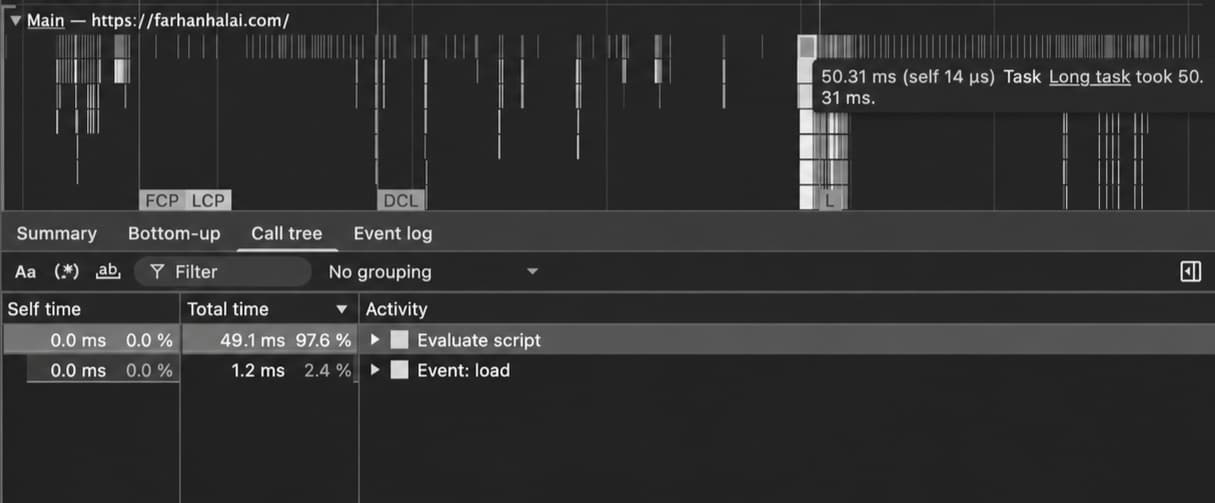
While profiling my live portfolio, I captured a task lasting 50.31 ms, just above the long-task threshold.
The call stack passed through Turbopack's runtime and bundled JavaScript, including module initialization and Next.js bootstrap code. The trace didn't identify which specific operation pushed the task over the threshold.
I recorded two additional page loads under similar conditions, and the task didn't reappear in either recording.
I couldn't establish a recurring bottleneck or attribute the task to Turbopack, React hydration, or a specific component. One trace can reveal a potential issue; repeat measurements help determine whether it is reproducible.
3. Using Lighthouse
Lighthouse's Avoid long main-thread tasks diagnostic can flag issues, while DevTools helps investigate their causes. After optimizing, repeat the recording under similar conditions and compare results.
Strategies to Optimize Long Tasks
Choose an optimization based on what the task is doing.
1. Eliminate Unnecessary Work
First, check for repeated calculations, duplicate processing, unnecessary DOM updates, or work that could wait until needed.
For example, consider a calculation that produces the same settings for every item:
for (const item of items) {
  const settings = calculateSettings();
  processItem(item, settings);
}
If the settings don't change between iterations, calculate them once:
const settings = calculateSettings();

for (const item of items) {
  processItem(item, settings);
}
This removes redundant computation. Measure the change to confirm that it improves performance.
2. Break Large Tasks Into Smaller Chunks
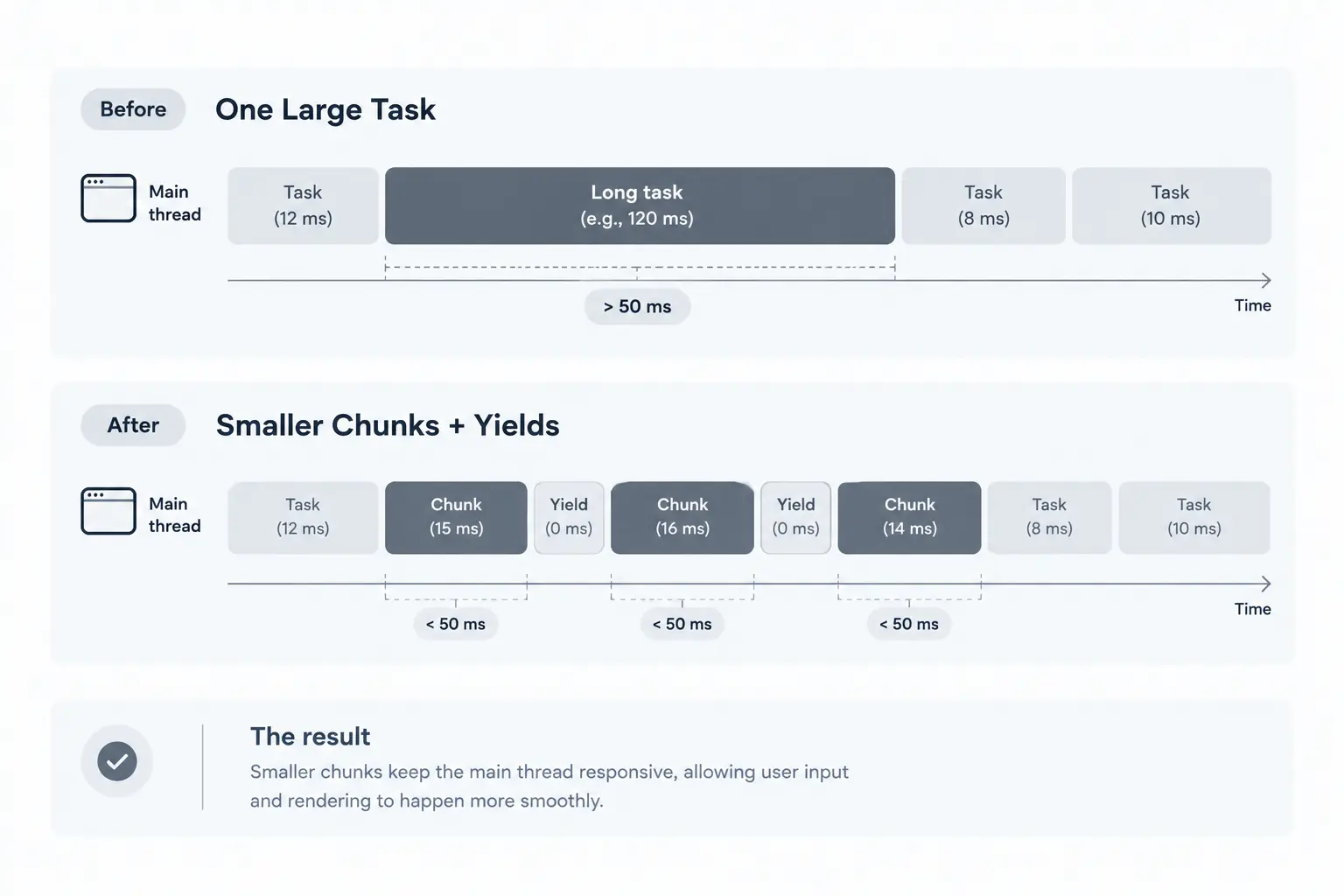
If the work is necessary but takes too long in one uninterrupted task, split it into smaller batches.
function yieldToMain() {
  return new Promise((resolve) => {
    setTimeout(resolve, 0);
  });
}

async function processInChunks(items, chunkSize = 100) {
  for (let i = 0; i < items.length; i += chunkSize) {
    const chunk = items.slice(i, i + chunkSize);

    for (const item of chunk) {
      performExpensiveOperation(item);
    }

    if (i + chunkSize < items.length) {
      await yieldToMain();
    }
  }
}
Yielding between batches gives the browser an opportunity to schedule other work. Choose the batch size by measurement: large batches may remain long tasks, while tiny batches add scheduling overhead.
Where supported, scheduler.yield() provides another way to yield execution, with a fallback for browsers that don't support it:
async function yieldToMain() {
  if (globalThis.scheduler?.yield) {
    await globalThis.scheduler.yield();
  } else {
    await new Promise((resolve) => setTimeout(resolve, 0));
  }
}
Use this helper in place of the earlier yieldToMain() function when appropriate.
Remember that splitting work may improve responsiveness without reducing total execution time.
3. Move CPU-Intensive Work to Web Workers
Large data transformations and CPU-heavy calculations may suit a Web Worker. Workers run JavaScript on a separate thread, keeping the main thread available for UI work.
For example, a worker can process data and return the result through messages:
// data-worker.js
self.onmessage = (event) => {
  const result = performExpensiveCalculation(event.data);
  self.postMessage(result);
};
The main thread can create the worker and send it the data:
const worker = new Worker(
  new URL("./data-worker.js", import.meta.url), {
    type: "module",
  }
);

worker.onmessage = (event) => {
  updateUI(event.data);
};

worker.postMessage(largeDataset);
This example assumes that performExpensiveCalculation() is defined or imported in the worker file.
Workers suit CPU-heavy tasks that don't need direct DOM access. Account for setup and data-transfer overhead before using one.
4. Reduce Expensive DOM Operations
Frequent DOM updates can trigger extra style and layout work. When creating many elements, build them in a DocumentFragment and append them together:
const fragment = document.createDocumentFragment();

for (const item of items) {
  const element = document.createElement("li");
  element.textContent = item.name;
  fragment.appendChild(element);
}

document.querySelector("#list").appendChild(fragment);
This batches DOM construction. For very large lists, pagination or virtualization may help more by avoiding rendering every item at once.
5. Defer Noncritical Work
Defer noncritical work—such as analytics or optional widgets—until after essential UI work or until it is needed.
For example:
setTimeout(() => {
  initializeOptionalWidget();
}, 0);
This schedules a later task, but doesn't guarantee the browser will render first. An expensive callback can still become a long task, so consider chunking it or moving suitable work to a Worker.
Conclusion
When optimizing long tasks:
- Measure first: Find the actual bottleneck in DevTools.
- Remove unnecessary work: Avoid calculations and updates that aren't needed.
- Yield or use workers: Choose the approach that fits the workload.
- Reduce rendering overhead: Avoid unnecessary DOM updates.
- Verify the result: Compare recordings and responsiveness before and after changes.
No single technique solves every problem. Identify what's blocking the main thread, choose an appropriate strategy, and measure the outcome. The goal is to keep the browser responsive while necessary work gets done.
Further Reading
- Optimize long tasks (web.dev) : Techniques for breaking up long-running tasks.
- Optimize INP (web.dev) : Improve responsiveness across user interactions.
- Web Workers API (MDN Web Docs) : Run JavaScript on background threads.
On this page
Author
Farhan Halai
Topics
Share