Core Web Vitals: A Practical Guide to Measuring Web Performance

Introduction
A website can look great and offer all the right features, but if it loads slowly, responds sluggishly, or shifts unexpectedly while users interact with it, the experience quickly suffers.
That's where Core Web Vitals come in. Google's set of user-centric performance metrics helps measure how people actually experience a website — from how quickly its main content loads to how responsive it feels and how visually stable it remains.
Understanding these metrics is essential for identifying performance bottlenecks, improving user experience, and meeting Google's page experience recommendations.
In this guide, we'll explore the three Core Web Vitals — Largest Contentful Paint (LCP), Interaction to Next Paint (INP), and Cumulative Layout Shift (CLS) — and walk through how to measure, diagnose, and improve them using practical tools and techniques.
What Are Core Web Vitals?
Core Web Vitals are a set of user-focused metrics introduced by Google to measure key aspects of the user experience on a web page. They focus on three areas: loading performance, responsiveness, and visual stability.
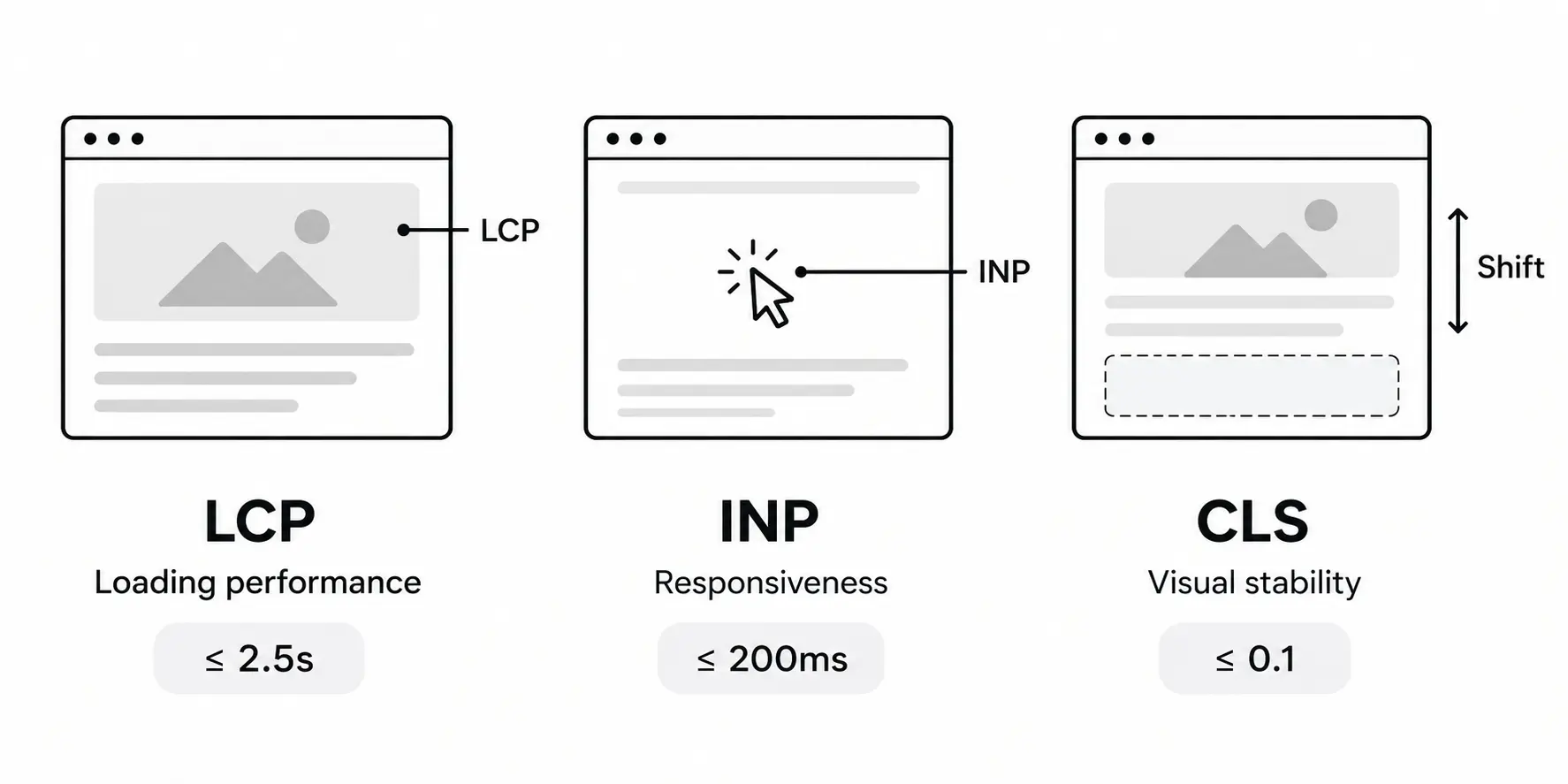
The current Core Web Vitals consist of three metrics:
| Metric | What it measures | Good threshold |
|---|---|---|
| Largest Contentful Paint (LCP) | Loading performance | ≤ 2.5 seconds |
| Interaction to Next Paint (INP) | Responsiveness | ≤ 200 milliseconds |
| Cumulative Layout Shift (CLS) | Visual stability | ≤ 0.1 |
These thresholds are evaluated at the 75th percentile of page visits, separately for mobile and desktop. In other words, at least 75% of measured visits should fall within the good threshold for each metric.
Together, these metrics provide a useful indication of a page's user experience, although they don't capture every aspect of web performance.
Before exploring each metric in detail, let's look at how Core Web Vitals have evolved over time.
A Brief History of Core Web Vitals
Google introduced Core Web Vitals in May 2020 with three metrics: Largest Contentful Paint (LCP), First Input Delay (FID), and Cumulative Layout Shift (CLS).
FID measured the delay between a user's first interaction and the browser beginning to process it. However, it didn't capture responsiveness across subsequent interactions. In March 2024, Interaction to Next Paint (INP) replaced FID as a Core Web Vital, providing a more comprehensive measure of responsiveness throughout a page visit.
This evolution reflects Google's effort to make performance metrics better represent real-world user experiences, particularly as web applications become more interactive.
Lab Data vs. Field Data
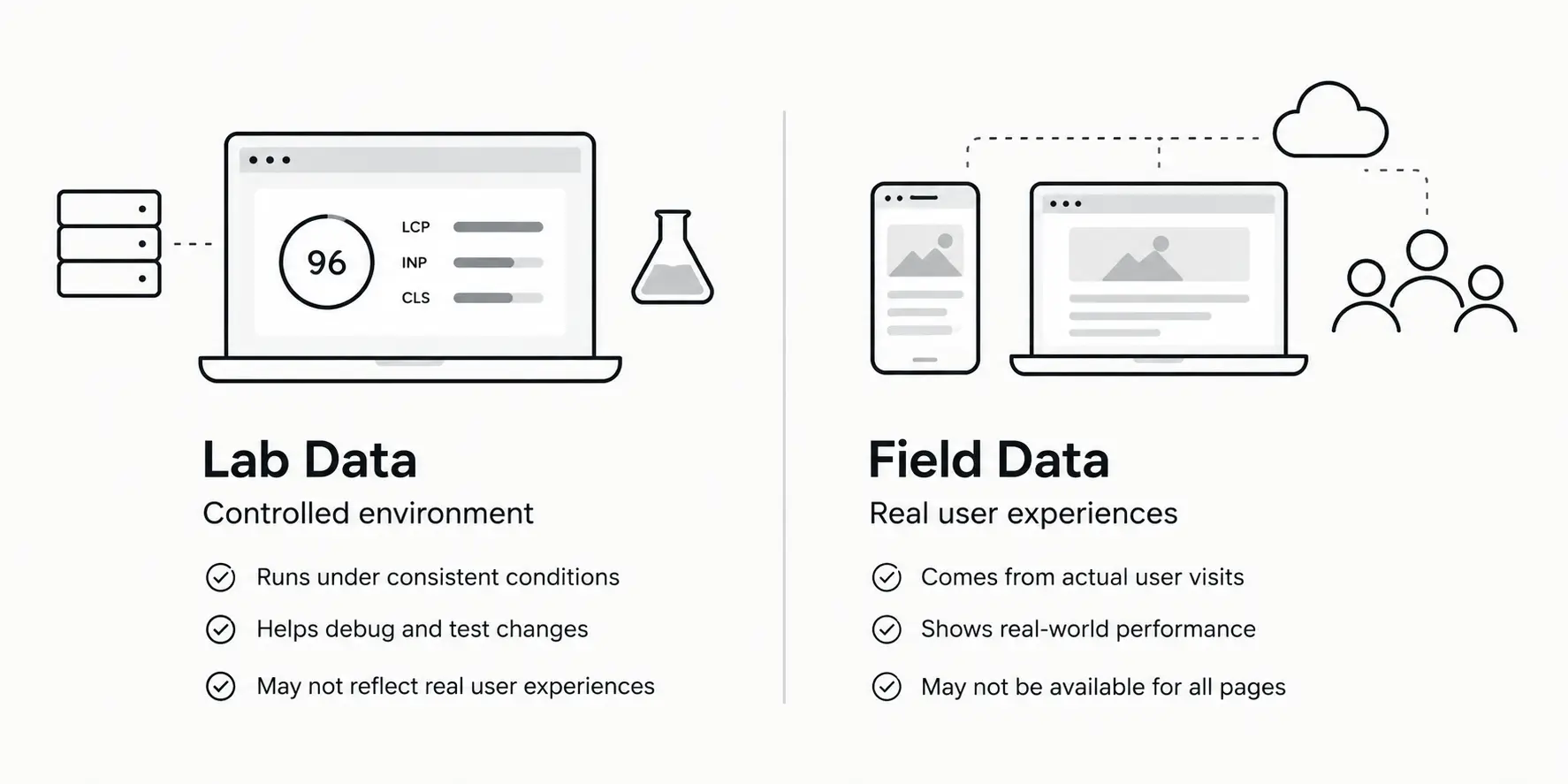
Core Web Vitals can be measured using two types of data: lab data and field data. Understanding the difference helps you interpret performance results and choose the right approach to optimization.
Lab Data
Lab data is collected in a controlled environment using tools such as Lighthouse. It helps developers reproduce performance issues, inspect browser behavior, and compare changes under consistent conditions.
Lab tests are useful for identifying render-blocking resources, expensive JavaScript, and potential layout shifts. However, each test represents a specific run and cannot fully reproduce the range of devices, networks, and interactions experienced by real users.
Field Data
Field data comes from real user visits. Google's Chrome UX Report (CrUX) collects anonymized performance measurements from eligible Chrome users and aggregates them to show how pages perform under real-world conditions.
For a website to appear in CrUX, it must be publicly discoverable and receive sufficient traffic to meet Google's eligibility criteria. As a result, field data may not be available for every page or website.
You can access CrUX data through tools such as PageSpeed Insights, Google Search Console, and the CrUX Dashboard.
Which Should You Use?
| Aspect | Lab data | Field data |
|---|---|---|
| Source | Collected under controlled conditions | Collected from real user experiences |
| Use case | Useful for debugging and testing changes | Useful for understanding actual user performance |
| Variability | Results can vary with test conditions | Reflects a range of real-world conditions |
A page may perform well in a Lighthouse audit but poorly in field data. Differences in devices, network conditions, caching, and user interactions can explain the gap.
Use field data to understand the experience users are having, and lab data to investigate why problems occur.
How to Measure Core Web Vitals
Once you understand the difference between lab and field data, the next step is knowing where to find these measurements and how to use them to evaluate and improve performance.
PageSpeed Insights
PageSpeed Insights (Google) combines real-user field data, when available, with a Lighthouse lab audit. Enter a page URL to review its Core Web Vitals and performance diagnostics.
Use field data to understand real-world performance, then examine the lab results to investigate potential causes of performance issues.
Chrome DevTools
Chrome DevTools helps investigate performance issues directly in the browser.
- Performance panel: Record page activity and inspect long tasks, rendering work, and interactions.
- Network panel: Identify slow resources, large downloads, and render-blocking assets.
- Rendering tools: Investigate visual behavior, including layout shifts.
DevTools is particularly useful when you need to connect a performance issue to specific browser activity or application code.
Google Search Console
Google Search Console provides a Core Web Vitals report that groups eligible URLs according to their field performance.
Use it to identify groups of pages with similar issues and prioritize improvements that may benefit multiple URLs.
Chrome UX Report (CrUX)
The Chrome UX Report (CrUX) provides aggregated real-world performance data from eligible Chrome users.
It is useful for understanding performance trends over time, though data availability depends on eligibility and coverage.
How to Diagnose Core Web Vitals Issues
Measuring Core Web Vitals tells you whether a page meets Google's performance thresholds. The next step is identifying what's causing a poor result.
Each metric reflects a different aspect of user experience, so the debugging approach differs. Start by identifying the affected metric, investigate the relevant browser activity, and use the findings to guide your optimizations.
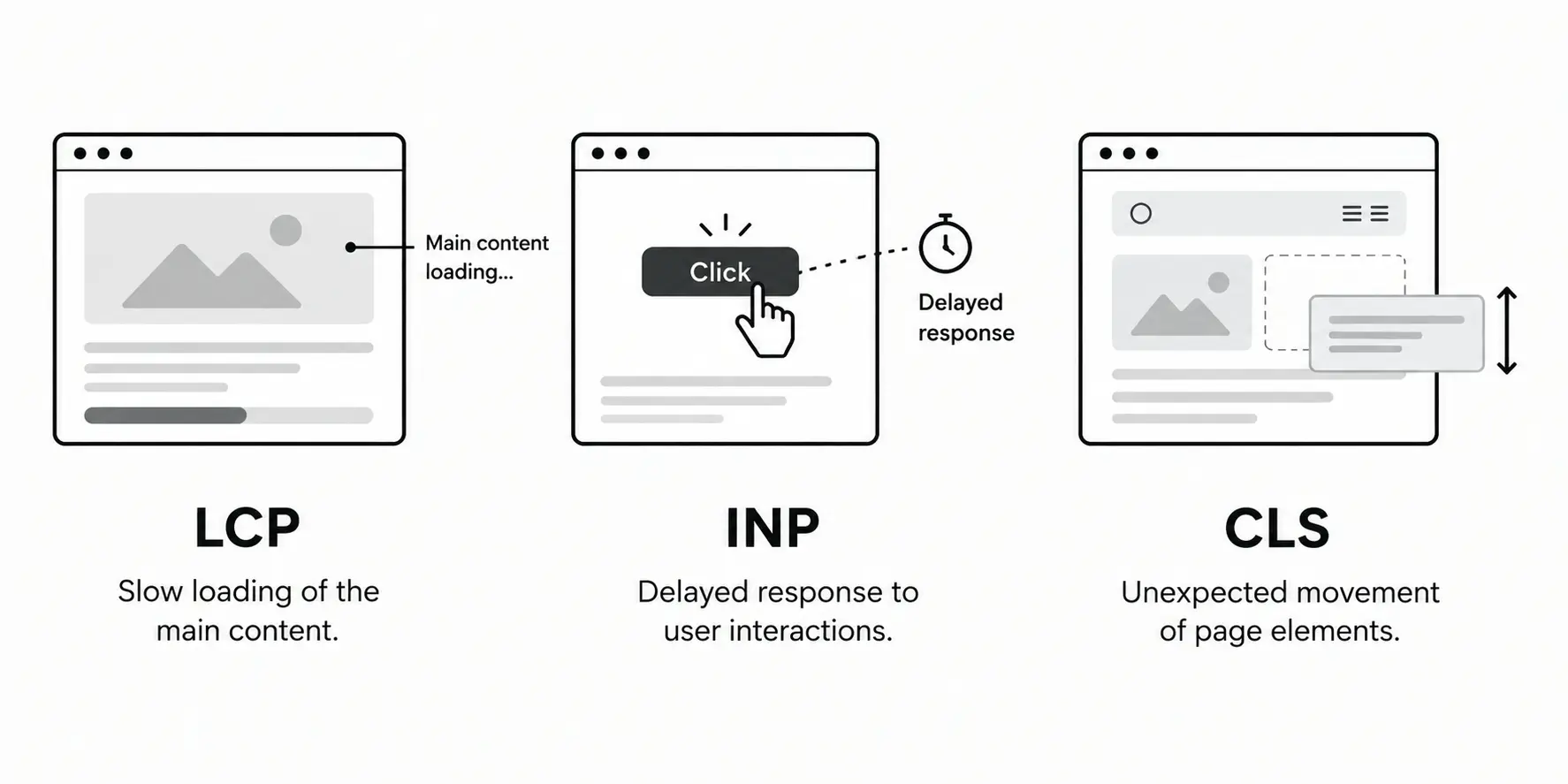
1. Diagnosing Largest Contentful Paint (LCP)
A poor LCP score means the largest content element visible within the viewport takes too long to render. Common causes include:
- Slow server response: The browser waits too long to receive the initial HTML.
- Render-blocking resources: CSS or JavaScript delays the rendering of page content.
- Late resource discovery: The browser discovers the LCP image or another key resource too late.
- Slow resource loading: Large images or slow network requests delay the element.
- Rendering delays: Client-side JavaScript or expensive rendering work delays the element's appearance.
Start by identifying the LCP element in PageSpeed Insights or Chrome DevTools. Then investigate its loading sequence: when the browser discovers the resource, how long it takes to download, and how much time passes before the element is rendered.
2. Diagnosing Interaction to Next Paint (INP)
A poor INP score indicates that interactions sometimes take too long to produce a visual response. Common causes include:
- Long JavaScript tasks: Heavy synchronous work blocks the main thread.
- Expensive event handlers: Click, input, or other interaction handlers perform too much work.
- Excessive DOM updates: Large rendering changes increase the time needed to update the page.
- Third-party scripts: Analytics, advertising, or embedded scripts compete for main-thread time.
Use Chrome DevTools to record a slow interaction and inspect the time spent waiting for the event to be processed, executing the event handler, and rendering the next visual update.
Total Blocking Time (TBT), available in lab tools such as Lighthouse, can help identify main-thread blocking during a page load. However, TBT is a diagnostic metric, not a substitute for measuring real-world INP.
3. Diagnosing Cumulative Layout Shift (CLS)
A poor CLS score means visible elements move unexpectedly during a page visit. Common causes include:
- Images or videos without reserved space: The browser doesn't know how much space to allocate before they load.
- Ads and embedded content: Late-loading elements push existing content around.
- Dynamically inserted content: New UI is inserted above content the user is viewing.
- Font changes: A fallback font is replaced by a font with different text dimensions.
Use Chrome DevTools to identify layout shifts and inspect which elements moved. Reproduce the affected page state when possible, because layout shifts may happen after the initial load.
Remember that CLS measures layout stability across the page's lifetime, not just during the initial load. Investigate shifts that occur during scrolling and other interactions as well.
How to Improve Core Web Vitals
Once you've identified the causes of poor Core Web Vitals, prioritize fixes based on their potential impact on real users.
Prioritize High-Impact Improvements
- Improve LCP: Reduce server response time, eliminate unnecessary render-blocking resources, and prioritize the LCP element.
- Improve INP: Break up long JavaScript tasks, simplify event handlers, and reduce unnecessary rendering work.
- Improve CLS: Reserve space for images and embedded content, prevent unexpected layout shifts, and optimize font loading.
Validate and Monitor Changes
Retest using Lighthouse and Chrome DevTools, comparing the results against your baseline. Then monitor field data through PageSpeed Insights and Google Search Console, where available, to determine whether real-user performance has improved.
Remember that better lab results don't guarantee better field performance. Continue monitoring real-user data to validate the impact of your changes.
Do Core Web Vitals Affect SEO?
Core Web Vitals are part of Google's page experience signals and are considered by its ranking systems. However, passing all three metrics doesn't guarantee higher search rankings.
Google considers many factors when ranking pages, including the relevance and quality of their content. A good page experience can contribute to overall search performance, but it doesn't replace useful, relevant content.
The primary goal of improving Core Web Vitals should be to deliver a better user experience, with potential SEO benefits as an additional advantage.
Conclusion
Core Web Vitals help evaluate web performance through loading speed, responsiveness, and visual stability. Understanding these metrics makes it easier to identify performance bottlenecks and prioritize improvements that matter to users.
Use field data to understand the experience real users have, lab tools to investigate issues, and targeted optimizations to improve performance. Validate your changes and continue monitoring the results to ensure those improvements translate into better real-world experiences.
Ultimately, the goal is to build web experiences that feel fast, respond smoothly, and remain visually stable.
Further Reading
On this page
Author
Farhan Halai
Topics
Share